Network Adapters
Products · Network Adapters
6 active deals
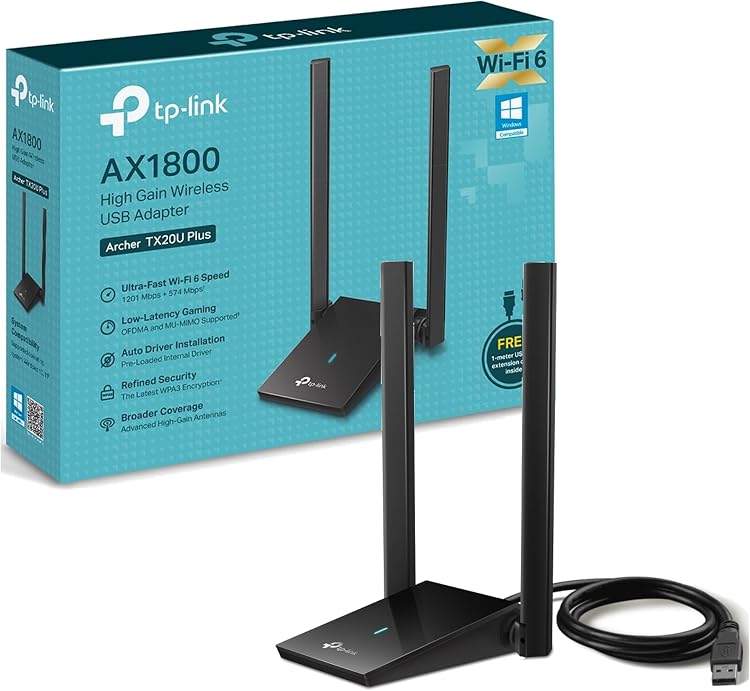
TP-Link Archer TX20U Plus AX1800 Wi-Fi 6 USB Adapter
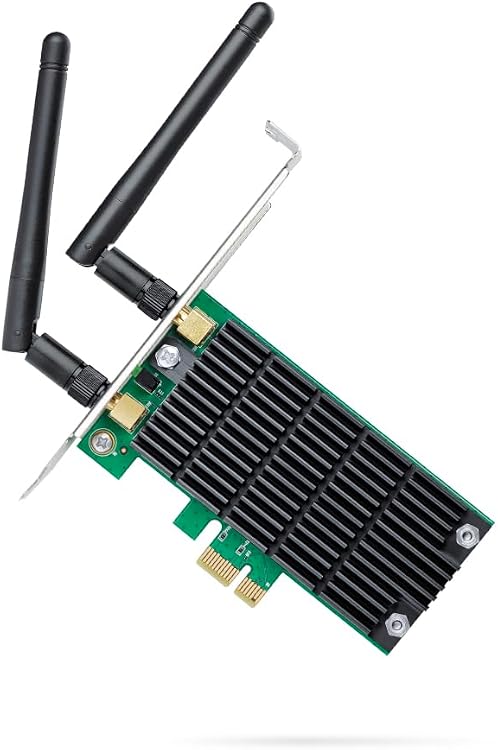
TP-Link Archer T4E AC1200 PCIe Wi-Fi Adapter
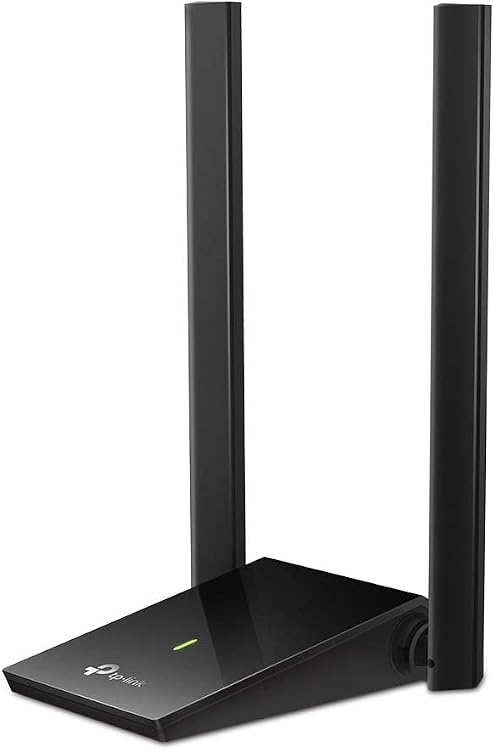
TP-Link Archer T4U Plus AC1300 Dual-Band USB Wi-Fi Adapter
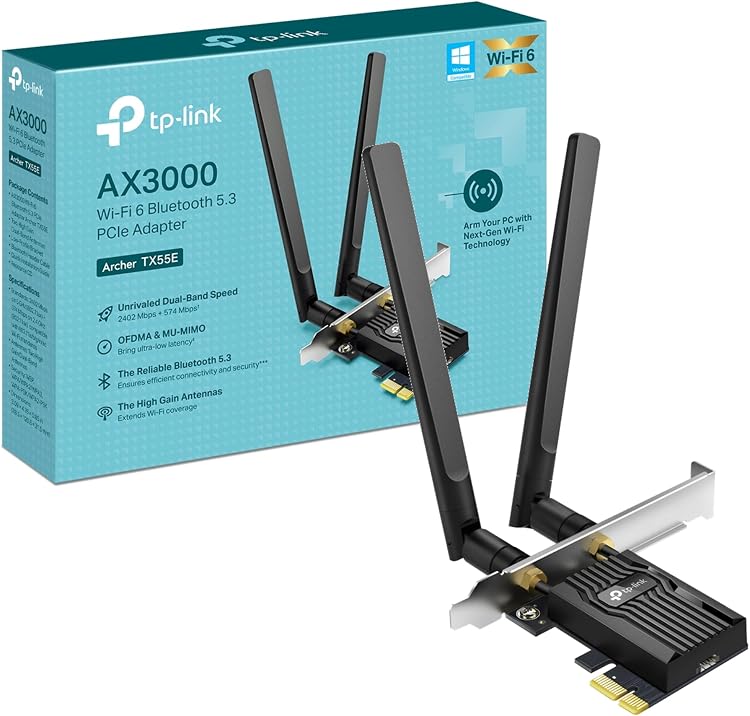
TP-Link Archer TX55E AX3000 Wi-Fi 6 PCIe Adapter
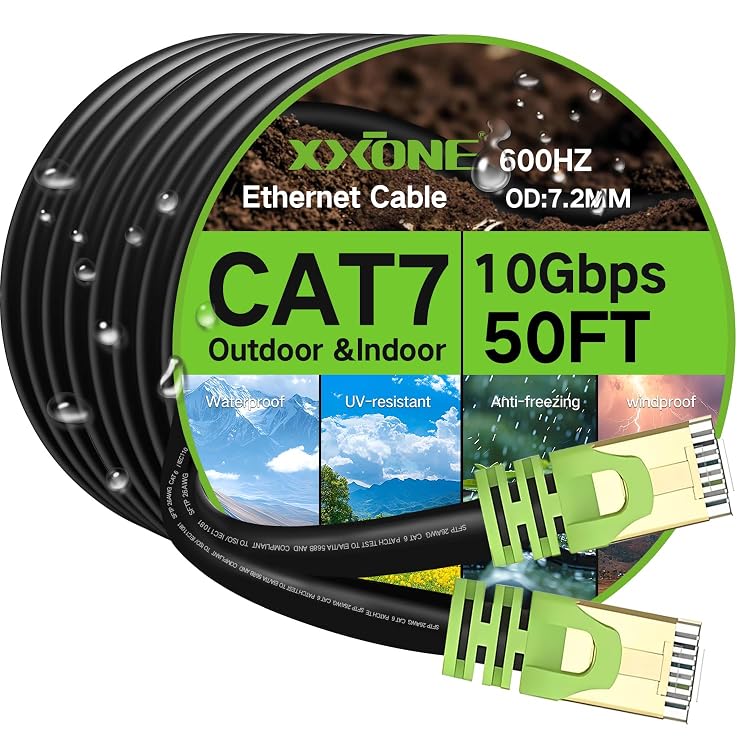
XXONE Cat7 Outdoor Ethernet Cable, 300 ft
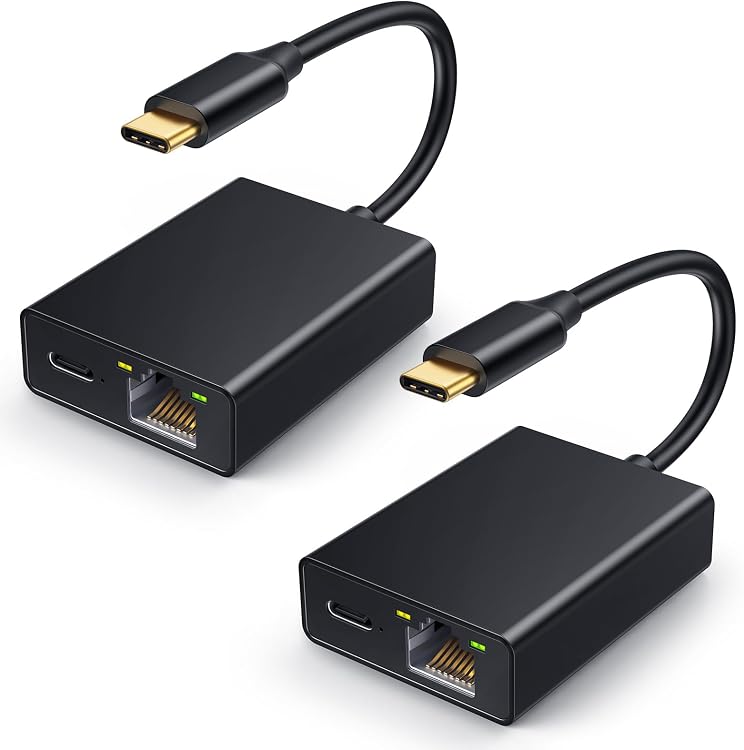
ELECTOP USB-C Ethernet Adapter for Chromecast, 2-Pack
Top deals in Network Adapters
Big discounts across a variety of models and stores.
TP-Link Archer TX20U Plus AX1800 Wi-Fi 6 USB Adapter
TP-Link Archer T4U Plus AC1300 Dual-Band USB Wi-Fi Adapter
ELECTOP USB-C Ethernet Adapter for Chromecast, 2-Pack
TP-Link Archer TX55E AX3000 Wi-Fi 6 PCIe Adapter
XXONE Cat7 Outdoor Ethernet Cable, 300 ft
TP-Link Archer T4E AC1200 PCIe Wi-Fi Adapter
Network adapters: add Wi-Fi or Ethernet without compatibility surprises
A network adapter connects a computer to a network; it does not extend coverage throughout your home by itself. Start with the computer that will use it. A laptop without Ethernet, a desktop far from the router and a machine running an older operating system need different things, even when adapters advertise similar speeds.
USB convenience or an internal card
A USB adapter is easy to move between computers, but occupies a port and may obstruct neighbouring sockets. Check the computer port's speed, not just its shape. A PCIe card needs an available slot, room inside the case and the correct bracket height. If it includes Bluetooth, it may also require an internal USB connection. M.2 cards use different formats and interfaces, so physical fit alone does not establish compatibility.
Drivers for your exact operating system
Look for support for your operating system and version before buying. A vague claim of computer compatibility does not establish support for Linux or an older Windows release. The chipset helps identify support, but revisions of the same product can use different hardware. Establish how you will obtain the driver if this computer is currently offline, and whether you can keep an installer for later recovery.
- On a managed work computer, check permission to install drivers or add hardware.
Speed across the complete connection
For Ethernet, the router or switch port and cable must support the adapter's rate. For Wi-Fi, consider the bands supported by the access point as well as distance. Combined headline figures are not the throughput of a single transfer. A new adapter cannot remove a slow USB connection or increase your internet subscription speed. Match the purchase to the weakest relevant part of the route your traffic actually takes.
Antenna position and everyday behaviour
A tiny adapter is convenient for travel but can end up poorly positioned behind a metal desktop case. External antennas or a separate base let you improve placement without moving the computer. Consider cable length, heat during sustained transfers and stability after sleep and wake. During the return period, try the networks and workloads you normally use, rather than merely checking that a connection icon appears on screen.